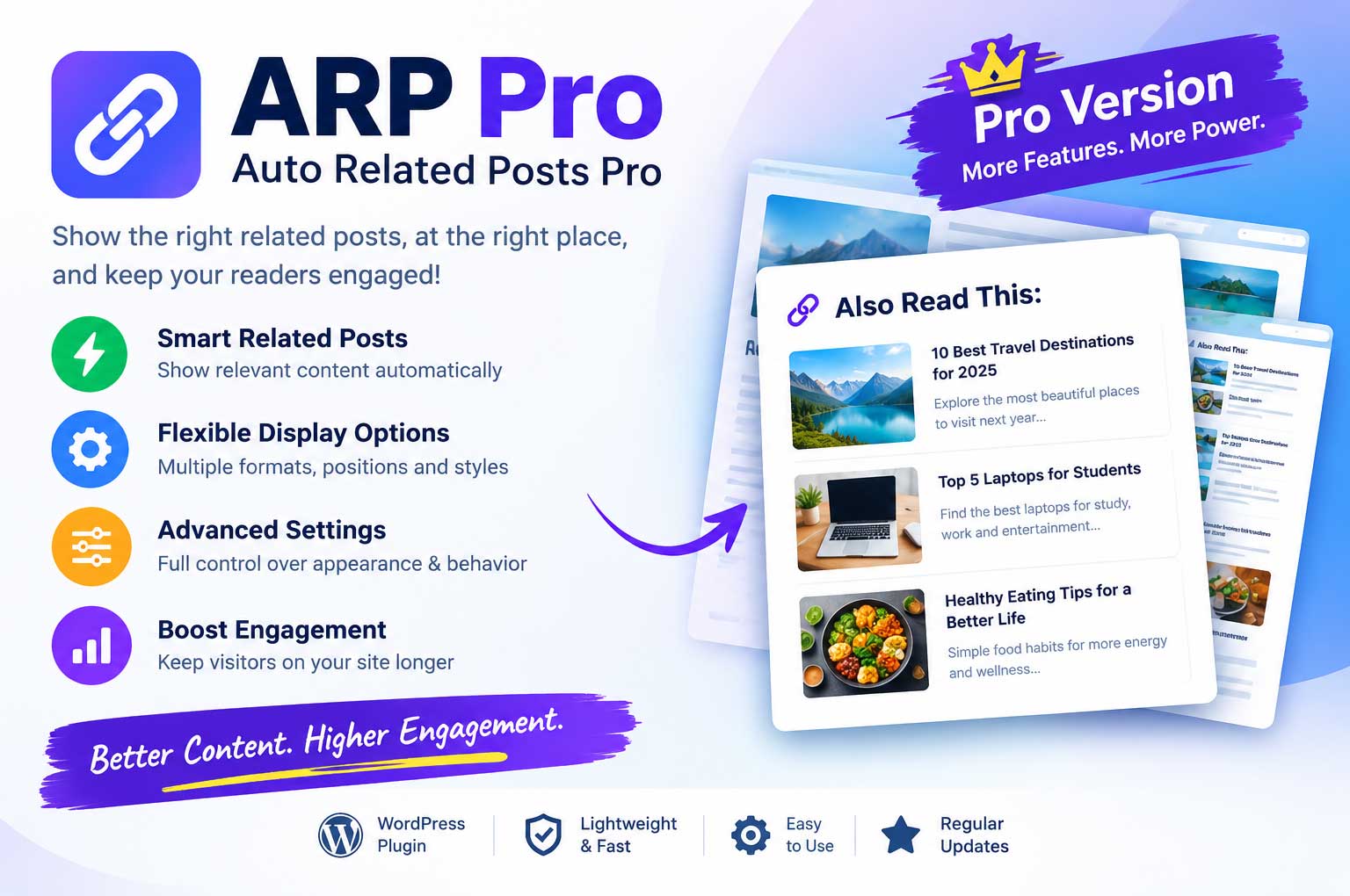
Auto Related Posts WordPress Plugin – ARP Pro: Complete Features, Settings & Tutorial
Here you will find the very important topics like:
- What Is Auto Related Posts Pro?
- Why use a related-posts plugin?
- Key Features of ARP Pro
- Understanding the Related-Post Sources
- Related-Post Display Formats
- How to Install and Activate Auto Related Posts Pro
- How to Configure ARP Pro
- Configurations for Different Websites
- Manual and Automatic Related-Post Placement
- Best Practices for Better Results
- Troubleshooting Common Issues
- Frequently Asked Questions (FAQ)
- Product Catalog
Show the right related posts in the right place and keep your readers engaged!
Auto Related Posts Pro (ARP Pro) is a WordPress plugin designed to display related articles automatically inside your blog posts. It helps website owners connect readers with relevant content, improve internal navigation, encourage visitors to explore more articles, and create a better content-browsing experience.
Whether you run a news website, technology blog, educational portal, magazine, or content-focused business website, ARP Pro gives you flexible options for selecting related posts, controlling their placement, choosing display formats, and customizing how related content appears.
Plugin: Auto Related Posts Worpress Plugin Pro
Platform: WordPress
Product version: 1.0.0
Category: Related Posts / Content Engagement
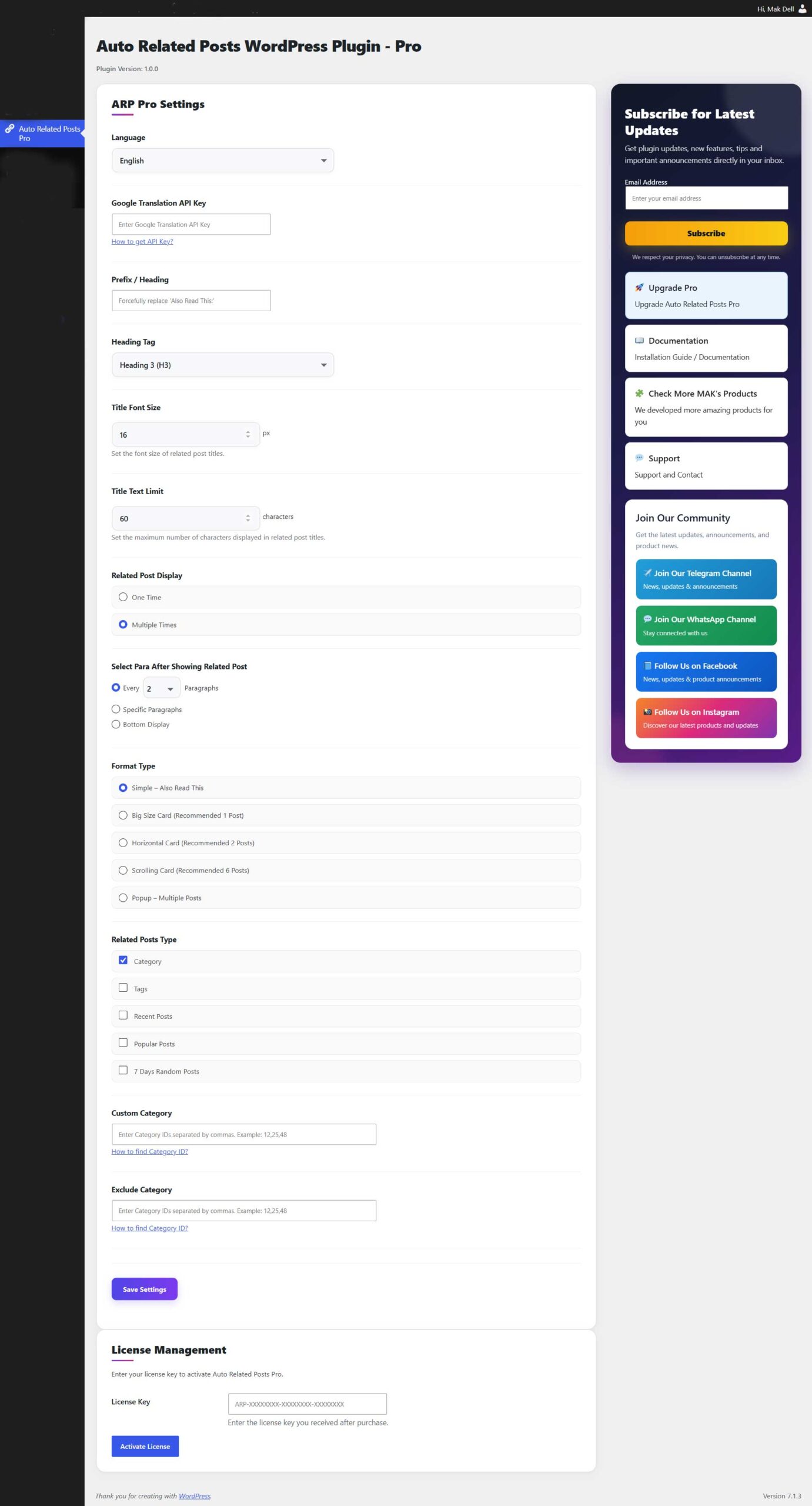
Admin Panel View
1. What Is Auto Related Posts Pro?
Auto Related Posts Pro is an advanced related-posts plugin that automatically inserts relevant articles into WordPress post content.
Instead of manually adding links to other articles every time you publish a new post, you can configure ARP Pro to display related content according to your selected sources and insertion settings.
For example, if a reader is reading an article about smartphones, the plugin can display other relevant technology articles in a section such as “Also Read This:”.
Readers can then click through to additional articles without having to return to the homepage or search the website manually.
Why use a related-posts plugin?
- Help readers discover more content.
- Improve internal linking between articles.
- Encourage visitors to explore additional posts.
- Display relevant content at strategic positions within articles.
- Present related articles in different visual formats.
- Reduce the need to insert related-post links manually.
The actual impact on engagement depends on your content quality, relevance, website design, and audience behavior.
2. Key Features of ARP Pro
Automatic Related Posts Insertion
Configure the plugin to insert related articles into single WordPress posts according to your selected placement settings.
Multiple Related-Post Sources
Choose supported content sources such as categories, tags, recent posts, popular posts, and random posts. The exact available choices depend on the configured related-post settings.
Flexible Display Formats
Choose from Simple, Big, Medium, Small Scrolling, and Popup formats to suit different website layouts.
Advanced Insertion Controls
Control whether related posts appear at regular paragraph intervals, at a selected paragraph position, or at the bottom of the article.
Popup Related Posts
Use popup display options with supported navigation and timer controls to present multiple related articles in a popup-style interface.
Multilingual Support
The plugin includes language support, including English and Hindi, with language-related settings available for supported configurations.
Manual Placement Options
The plugin includes manual related-post placement slots for configurations where you want more control over which related content appears at particular positions.
Customization Options
Configure supported options such as title length, heading tag, display format, and related-post source to suit your website.
License Management
The Pro version includes license activation, validation, and security verification features.
3. Understanding the Related-Post Sources
ARP Pro supports different ways of selecting content for related-post displays.
A. Category-Based Related Posts
Display articles associated with relevant WordPress categories.
Example: A reader opens an article in the Technology category. Related articles from the same category can be displayed to encourage further reading.
Best suited for news websites, magazines, and blogs organized by topic.
B. Tag-Based Related Posts
Use post tags to connect articles covering similar subjects.
Example: Articles tagged “Android,” “Smartphones,” or “Mobile Technology” can help readers discover other posts about similar topics.
This can be particularly useful when a website has many categories but more specific topics are represented by tags.
C. Recent Posts
Display recently published articles to help readers discover fresh content.
This option can be useful for news websites, frequently updated blogs, and websites where the latest information matters.
D. Popular Posts
Use the supported popular-post source to feature content that has attracted attention.
Popular content may help introduce new visitors to articles that other readers have found useful.
E. Random Posts
Display randomly selected articles to provide variety and help readers discover content beyond the most recent or frequently viewed posts.
Tip: Choose the source that best matches your website’s content strategy. The availability and behavior of each source depend on the plugin’s configured options.
4. Related-Post Display Formats
ARP Pro provides multiple display formats so you can choose a presentation that fits your content and theme.
A. Simple Format
The Simple format presents related articles in a compact layout.
It is suitable for websites that want to insert related links without taking too much space away from the main article.
Recommended for: Text-heavy blogs, news articles, and content-focused websites.
B. Big Format
The Big format gives related content a more prominent presentation.
It can be useful when you want readers to notice featured related articles within the article body.
Recommended for: Magazine layouts, long-form articles, and visually oriented blogs.
C. Medium Format
The Medium format provides a balance between compact links and larger related-content displays.
It is suitable for websites that want related articles to remain visible without making the section excessively large.
Recommended for: General-purpose blogs and multi-category websites.
D. Small Scrolling Format
The Small format provides a compact scrolling-style presentation for related content.
It can help fit related links into areas where space is limited.
Recommended for: Content-heavy websites with long articles and multiple related-content sections.
E. Popup Format
The Popup format displays related content through a popup-style interface. Supported popup options include multiple-post presentation, navigation, and timer controls.
Recommended for: Websites that want to present additional content in a more interactive format.
Use popup features thoughtfully. Avoid configurations that interrupt reading or make it difficult for visitors to close the popup.
5. How to Install and Activate Auto Related Posts Pro
Follow these steps to install the plugin on your WordPress website.
Step 1: Download the Plugin ZIP
Obtain the Auto Related Posts Pro ZIP file from your authorized download source.
Keep the original ZIP file available in case you need to reinstall the plugin.
Step 2: Open WordPress Administration
Log in to your WordPress dashboard using an account with administrator permissions.
Step 3: Upload the Plugin
Navigate to:
Plugins → Add New Plugin → Upload Plugin
Click the file selector and choose the ARP Pro ZIP file.
Step 4: Install and Activate
Click Install Now, wait for the installation to complete, and then click Activate Plugin.
Step 5: Open ARP Pro Settings
Open the Auto Related Posts settings page from your WordPress administration menu.
Review the available settings before enabling related-post insertion on your live content.
6. How to Configure ARP Pro
After installation, configure the plugin according to your website’s content and design.
Step 1: Select the Related-Post Source
Open the relevant related-post settings and select the source you want to use, such as categories, tags, recent posts, popular posts, or random posts, where available.
Example: For a technology blog, category-based or tag-based related posts can help connect articles covering similar subjects.
Step 2: Choose a Display Format
Select the format that best suits your website:
- Simple: Compact related links.
- Big: More prominent related content.
- Medium: Balanced presentation.
- Small: Compact scrolling presentation.
- Popup: Interactive popup-style related posts.
Save the settings and review the result on a sample article.
Step 3: Configure Insertion Placement
ARP Pro includes different placement modes to control where related content appears.
Every / regular paragraph insertion: Configure the plugin to insert related content at regular paragraph intervals using the available paragraph settings.
Specific paragraph insertion: Select a particular paragraph position when you want related content to appear at a chosen point in the article.
Bottom insertion: Place related content at the bottom of the article when you want readers to finish the main content before exploring additional posts.
The exact result depends on the selected mode and the article’s paragraph structure.
Step 4: Configure Paragraph Position
If you use paragraph-based insertion, review the paragraph position settings.
For example, placing a related-content section after an early paragraph may expose readers to additional articles sooner. Placing it later may preserve the reading experience for longer passages.
Test different positions on representative posts before applying a configuration across your website.
Step 5: Configure Title Length
Use the supported title-length setting to control how much of a related article’s title is displayed.
A shorter title may help maintain a compact layout. A longer title may provide more context but can take up additional space.
Check long and short titles on both desktop and mobile devices.
Step 6: Choose the Heading Tag
Select an appropriate heading tag using the available heading settings, such as H4 where supported.
Choose a heading level that fits the structure of your theme and article content. Heading levels should be used consistently rather than selected only for visual size.
Step 7: Configure Language Settings
Choose a supported language configuration that matches your website and audience.
The plugin includes English and Hindi language files and multilingual settings. Review the displayed labels on your site after changing the language configuration.
Step 8: Configure Popup Options
If you choose Popup format, review the available popup settings, including navigation and timer controls.
Use a readable design, test the popup’s behaviour, and confirm that visitors can continue reading comfortably.
Step 9: Review Manual Placement Options
If your configuration uses manual related-post placement slots, review each slot and confirm that the intended related content appears at the correct position.
Manual placement can be useful when a specific article requires more editorial control than automatic selection alone provides.
Step 10: Save and Test
Save your settings and open several published articles.
Check whether related posts appear in the expected positions, the selected format looks correct, and links lead to the intended articles.
7. Permanent ARP: Keep “Simple – Also Read This” Permanently in a Post
ARP Pro includes a per-post option called “Permanent ARP — Keep Simple – Also Read This permanently in this post?” This option is designed for users who want to keep the Simple “Also Read This” related-post section permanently inside a specific article instead of relying only on the plugin’s regular automatic insertion settings.
Where Can You Find This Option?
- Log in to your WordPress Dashboard.
- Go to Posts → All Posts.
- Open the post you want to edit.
- Locate the Permanent ARP option in the post editor.
- Choose Yes or No.
- Click Update or Publish to save your changes.
Note: The option is configured individually for each post.
What Does “Yes” Mean?
Select Yes when you want the Simple “Also Read This” section to be permanently saved inside that post’s content.
- The permanent Simple ARP section is inserted into the post content.
- The section becomes part of the saved post content rather than relying solely on the regular automatic insertion position.
- The permanent insertion is designed to avoid adding the same Simple ARP section twice.
- This is useful when you want a specific article to retain its Simple related-post section regardless of the usual automatic placement configuration.
Example: Suppose you publish a technology article and want an “Also Read This” section to remain at a particular point in the article. Enabling Yes allows ARP Pro to save the Simple ARP section within that post.
What Does “No” Mean?
Select No when you do not want to enable permanent Simple ARP insertion for that post.
- The post does not request a new permanent Simple ARP insertion through this option.
- The post can continue to use the regular ARP Pro display settings, such as automatic placement and the selected display format.
- You can use the plugin’s global settings to control how related posts are displayed for posts that do not use permanent insertion.
Important: Choosing No should not be described as automatically deleting a permanent section that was inserted earlier unless the installed plugin version explicitly implements that removal behavior.
Yes vs. No: Quick Comparison
| Behavior | Yes | No |
|---|---|---|
| Enable permanent Simple ARP insertion for this post | Yes | No |
| Save a permanent Simple ARP section in the post content | Intended behavior | No new permanent insertion |
| Use the regular ARP display settings | Avoid duplicate Simple output | Regular settings remain applicable |
| Best suited for | Posts that need a permanent Simple section | Posts using normal automatic display settings |
Important: Avoid Duplicate Related-Post Sections
A post with permanent Simple ARP should not also display a duplicate temporary or dynamically inserted Simple ARP section. ARP Pro should distinguish permanent insertion from regular automatic insertion to prevent duplicate output.
Before publishing, preview the post on the front end and check that the Simple “Also Read This” section appears only as intended.
Best Practices
- Use Yes only for posts where you specifically want permanent Simple ARP insertion.
- Use No for posts that should follow the regular ARP Pro display configuration.
- Always save the post after changing the option.
- Preview the post after updating it.
- Check for duplicate related-post sections when testing the permanent insertion feature.
- Test the behavior on a staging site before applying it to a large number of existing posts.
This per-post option provides additional control over how the Simple “Also Read This” section is handled in individual WordPress articles.
8. Configurations for Different Websites
News Website
A news website may prioritize recent articles, category-based recommendations, and compact related links.
Suggested approach:
- Choose a suitable recent-post or category-based source.
- Use Simple or Medium format.
- Test paragraph placement within news articles.
- Check that the related links remain relevant to the current story.
Technology Blog
A technology blog may use categories and tags to connect tutorials, reviews, and product explainers.
Suggested approach:
- Use category- or tag-based sources.
- Choose Medium or Big format where appropriate.
- Keep titles readable.
- Review related articles for topic relevance.
Educational Website
An educational website may benefit from connecting introductory lessons with advanced guides.
Suggested approach:
- Organize articles into clear categories.
- Use relevant related-post sources.
- Place recommendations near the end of a lesson or after a suitable paragraph.
- Test the layout on long educational articles.
General Blog
A general blog may benefit from a combination of recent posts and topic-based recommendations.
Suggested approach:
- Select the source that best fits each content strategy.
- Use Simple or Small format where space is limited.
- Test different insertion positions.
- Avoid displaying too many unrelated links in a single article.
These are configuration suggestions rather than guaranteed performance outcomes.
9. Manual and Automatic Related-Post Placement
Automatic insertion is useful when you publish many articles and want consistent placement across your content.
Manual placement is useful when a specific article needs more control over where related content appears.
When should you use automatic placement?
Choose automatic placement when:
- You publish frequently.
- You want a consistent layout across articles.
- You prefer to minimize repetitive editorial work.
- Your posts follow a relatively consistent structure.
When should you use manual placement?
Choose manual placement when:
- Certain articles need carefully selected recommendations.
- A specific paragraph provides a natural transition to another topic.
- You want more editorial control over the reader’s next step.
The best approach depends on your content workflow and the settings available in your plugin configuration.
10. Best Practices for Better Results
Keep Related Content Relevant
Readers are more likely to explore additional articles when recommendations match their interests and the current topic.
Choose a Suitable Insertion Position
Place related content where it supports the reading experience. Avoid interrupting important explanations or placing recommendations so frequently that they distract from the main article.
Use Readable Titles
Keep related-post titles clear and descriptive. Review how long titles wrap on different screen sizes.
Test Mobile Layouts
Open articles on phones and tablets to ensure that related-content sections remain readable and easy to use.
Use Popup Features Carefully
A popup should support discovery rather than prevent readers from accessing the article. Test the timer, navigation, and closing behaviour.
Review Performance and Engagement
Use your analytics tools to evaluate whether visitors are exploring more pages after you introduce related posts. Compare results over a reasonable period rather than assuming that every layout will produce the same outcome.
11. Troubleshooting Common Issues
Related Posts Are Not Appearing
Check that the plugin is active, the settings are saved, the article matches the intended content conditions, and the chosen source can return suitable posts.
Related Posts Appear in the Wrong Position
Review the selected insertion mode and paragraph position settings. Test with an article that has a clear paragraph structure.
The Display Format Does Not Look Right
Try another supported format and review the result with your active WordPress theme. Theme CSS and other plugins may influence the final appearance.
Popup Behaviour Is Unexpected
Review the popup configuration and timer or navigation options. Test the behaviour on desktop and mobile devices.
Language Labels Are Not as Expected
Review the language configuration and check that the intended language is supported and selected.
License Activation Problems
If your installation requires a valid Pro license, check the license key, domain activation, and license status in the plugin’s License Management section. Follow the instructions supplied with your purchase if verification fails.
12. Frequently Asked Questions (FAQ)
What is Auto Related Posts Pro?
Auto Related Posts Pro is a WordPress plugin that automatically inserts related articles into posts using configurable content sources, display formats, and placement settings.
Does ARP Pro insert related posts automatically?
Yes. It supports automatic insertion according to the configured placement and related-post settings.
Can I control where related posts appear?
Yes. Available placement modes include regular paragraph-based insertion, specific paragraph insertion, and bottom-of-article placement.
Which display formats are available?
The plugin includes Simple, Big, Medium, Small Scrolling, and Popup formats.
Can I display recent posts?
Yes. Recent posts are among the supported related-content sources.
Does the plugin support categories and tags?
Yes. Category-based and tag-based related-post sources are supported.
Does ARP Pro include popup functionality?
Yes. The Popup format includes supported features such as multiple-post presentation, navigation, and timer controls.
Can I customize related-post titles?
The plugin includes a title-length setting to help control the displayed title length.
Can I choose the heading tag?
Yes. The plugin includes a heading-tag setting. Choose a level that fits your content structure.
Does ARP Pro support Hindi?
The plugin includes English and Hindi language files and language-related settings. The displayed result depends on the selected configuration.
Is ARP Pro suitable for news websites?
It can be useful for news websites that want to connect related stories and encourage readers to explore additional articles.
Will ARP Pro automatically improve SEO rankings?
No plugin can guarantee higher rankings. Related posts can help create useful internal links and improve navigation, but SEO outcomes depend on many factors.
Can I use ARP Pro with any WordPress theme?
It is designed for WordPress, but the appearance may vary depending on your theme, CSS, and other plugins. Test it with your active theme before deploying it widely.
What should I do if related posts do not appear?
Check plugin activation, selected sources, placement settings, and the structure of the affected article. If the issue persists, contact the plugin support team with the relevant details.
13. Product Catalog: Explore More from MAK
Looking for more tools to improve your WordPress website?
Explore additional products and resources from MAK.
- Auto Related Posts Pro: Configure related-content insertion and display options for your WordPress articles.
- More MAK Products: Explore additional products and tools at https://www.gnugpl.org/brand/mak
- Documentation: Read the Auto Related Posts guide at https://www.gnugpl.org/what-is-auto-related-posts-wordpress-plugin-also-read-this
- Support: Visit https://www.gnugpl.org/support/
14. Conclusion
Auto Related Posts Pro provides a flexible way to connect WordPress articles through configurable related-post sources, multiple display formats, and different insertion positions.
By choosing relevant content, selecting an appropriate display format, and testing the placement on real articles, website owners can create a more useful browsing experience for their readers.
Start with a simple configuration, review the results on desktop and mobile, and refine your settings according to your website’s content strategy.
Ready to improve content discovery on your WordPress website?
Explore Auto Related Posts Pro and configure a related-content experience that fits your website.
Product Page: https://www.gnugpl.org/product/auto-related-posts-also-read-this-automatic-wordpress-plugin
Documentation: https://www.gnugpl.org/what-is-auto-related-posts-wordpress-plugin-also-read-this
More MAK Products: https://www.gnugpl.org/brand/mak
Support: https://www.gnugpl.org/support/
Installation & License Activation Full Guide
1. Requirements
Before installing Auto Related Posts Worpress Plugin Pro, make sure your WordPress website meets these requirements:
- WordPress 6.0 or later
- PHP 7.4 or later
- Administrator access to WordPress
- A valid Auto Related Posts Pro license key
2. Install the Plugin
Step 1 — Download the Plugin
Download the auto-related-posts-pro-1.0.0.zip file received after purchase.
Step 2 — Open WordPress Plugins
Log in to your WordPress Administrator Dashboard.
Go to:
Plugins → Add New Plugin
Step 3 — Upload the Plugin
Click:
Upload Plugin
Select:
auto-related-posts-pro-1.0.0.zip
Then click:
Install Now
Step 4 — Activate the Plugin
After installation is complete, click:
Activate Plugin
Auto Related Posts Pro is now installed and activated.
3. Activate Your License
A valid license is required to use the Pro version.
Step 1 — Open License Management
From the WordPress Dashboard, open:
Auto Related Posts → License Management
Step 2 — Enter Your License Key
Enter the license key provided with your purchase.
Example format:
ARP-XXXXXXXX-XXXXXXXX-XXXXXXXX
Step 3 — Activate
Click:
Activate License
The plugin will securely communicate with the license server and verify your license.
If the license is valid, you will see:
License Status: Active
Your license expiry date will also be displayed.
4. Configure the Plugin
After successful license activation:
- Open the Auto Related Posts settings page.
- Select your preferred related-post settings.
- Configure the insertion position.
- Select the related-post source and display format.
- Configure language and other available options.
- Save your settings.
Your related posts will then be displayed according to the selected configuration.
5. Deactivate a License
If you want to move the plugin to another website, first deactivate the license on the current website.
Go to:
Auto Related Posts → License Management
Click:
Deactivate License
After successful deactivation, the license can be activated on another authorized domain, subject to the license’s domain limit.
Important
If your license allows only one active domain, you must deactivate the license from the previous website before activating it on another website.
6. Moving the Plugin to Another Website
To move Auto Related Posts Pro to another website:
- Deactivate the license on the old website.
- Install Auto Related Posts Pro on the new website.
- Activate the plugin.
- Open Auto Related Posts → License Management.
- Enter the same license key.
- Click Activate License.
The new website must comply with the domain limit of your license.
7. License Security
Auto Related Posts Pro uses secure license verification to protect authorized installations.
The plugin automatically obtains the required public verification key from the license server when necessary.
Customers do not need to manually install or configure a public-key file.
8. License Expiry
Your license has an expiry date determined by your purchase.
The plugin periodically validates the license with the license server.
If a license expires or becomes invalid, the plugin will no longer consider the installation licensed until a valid license is available.
9. Troubleshooting
“Invalid License Key”
Check that:
- The license key was entered correctly.
- There are no extra spaces before or after the key.
- The license has not expired.
- The license is not already active on another domain.
- Your website can communicate with the license server.
“License Security Verification Failed”
This message indicates that the plugin could not verify the security signature associated with the license response.
First:
- Make sure the website has an active internet connection.
- Make sure the license server is accessible.
- Refresh the License Management page.
- If necessary, deactivate and reactivate the license.
If the problem continues, contact support.
License Already Activated
If the license is already active on another domain and your license allows only one active domain:
- Go to the previous website.
- Open Auto Related Posts → License Management.
- Click Deactivate License.
- Return to the new website.
- Activate the license again.
10. Uninstalling the Plugin
If Auto Related Posts Pro is uninstalled through WordPress, its local plugin settings and locally stored license information are removed from the website database.
Important
Uninstalling the plugin does not automatically release a server-side license activation.
If you are moving the license to another website, deactivate the license before uninstalling the plugin.
11. Getting Support
When contacting support, please provide:
- Your website domain
- Auto Related Posts Pro version
- WordPress version
- PHP version
- A description of the problem
- The exact error message, if any
- A screenshot when helpful
Do not send your license key publicly.
Quick Start
For a new installation:
Install ZIP → Activate Plugin → License Management → Enter License Key → Activate License → Configure Settings → Save
Your Auto Related Posts Pro installation is then ready to use.